
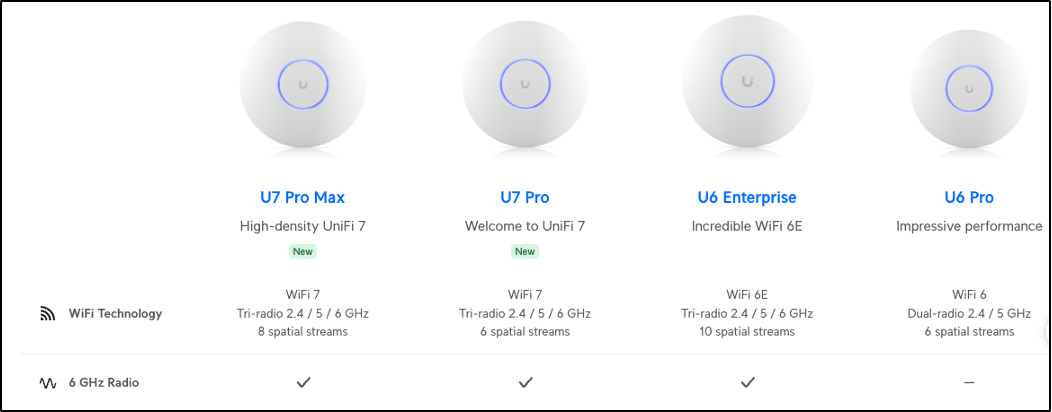
I have upgraded my home lab to Wi-Fi7 APs from UniFi (thanks to Darrel and the UniFi team for providing the hardware). UniFi introduced Wi-Fi packet capture capability (on radio interfaces or ethernet interfaces) in the recent UniFi release 8.4.59. This feature is supported on their Wi-Fi 7 and Wi-Fi 6/6E (U7 and U6 series) APs.
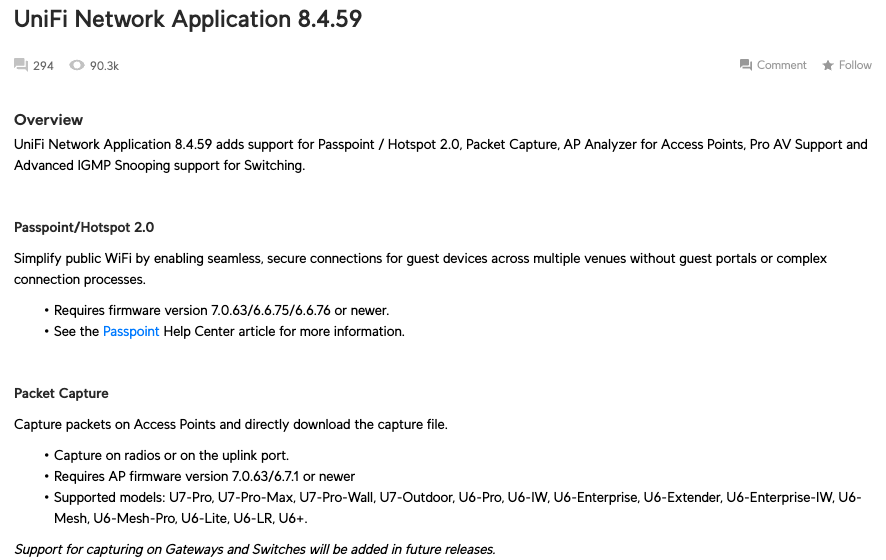
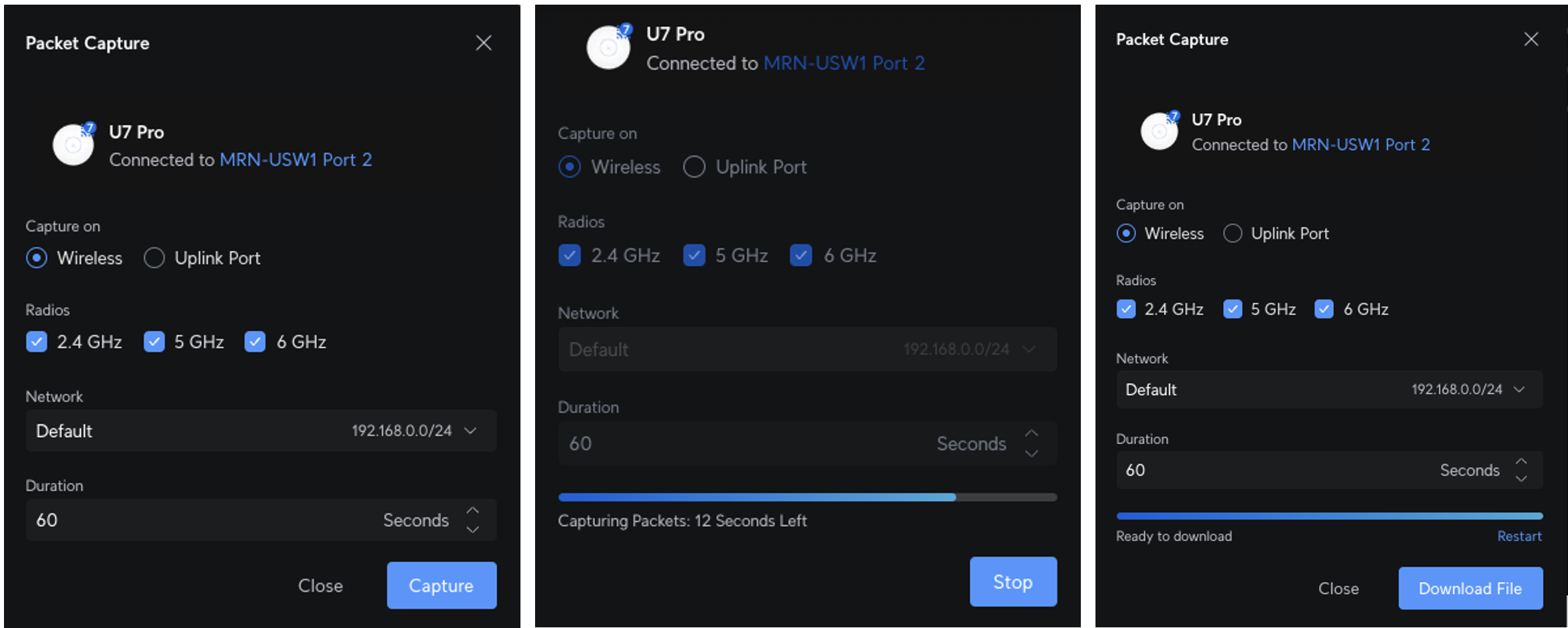
The capturing process is quite straightforward. You can capture traffic for 30s to 300s (max 5min). First, you have to select AP (Unified Devices) and then select the ‘Packet Capture‘ option. If you do not see that option the AP model is not supporting that feature.
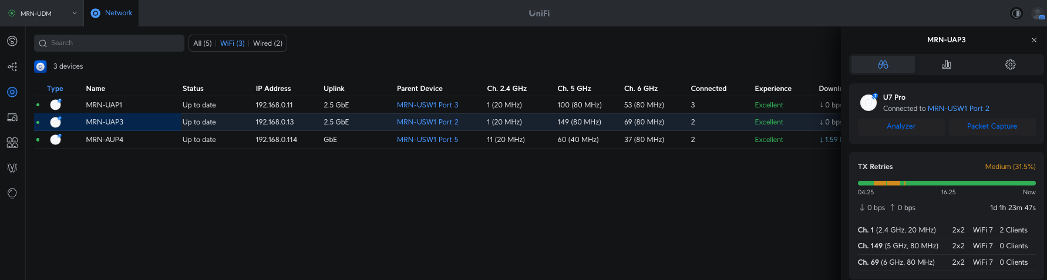
Once click ‘Packet Capture‘ you simply need to select capture on ‘Wireless‘ and choose the radio interfaces. I selected all three radios and set them for 60-second PCAP. Once the 60s expire it should show you the ‘Download File‘ option. If you do not see it, you may need to retake the PCAP (I had to do this a couple of times)
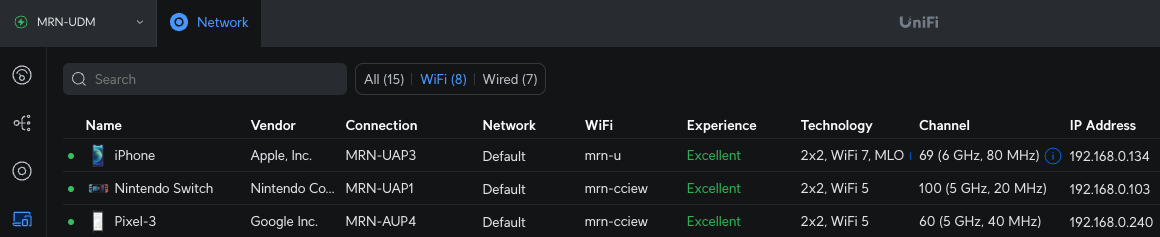
While the capture was running I connected ‘iPhone16’ to ‘mrn-u’ SSID which is configured for MLO (Multi-Link Operation). In my testing, I used the 8.5.6 release (with AP firmware 7.1.29 version) and you can read MLO supports on UniFi APs from this link. You can see the iPhone connected to my AP and showing MLO support.
Once I downloaded the PCAP file, I saw 4 files in a tar file. You can download it from here. The default tar filename consists of MAC address of the AP and Unix timestamp of the PCAP. eg.”ap-pcap–9c_05_d6_3f_0f_85–1728758703321.tar”
It appears that even though I selected 3 radios, it captures data on 5GHz and 6GHz radios. I have tried 2.4GHz and 5GHz radios separately, but it only shows the 5GHz capture, which suggests that this feature may not be supported on the 2.4GHz radio.
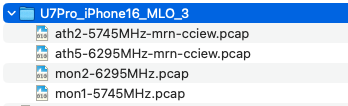
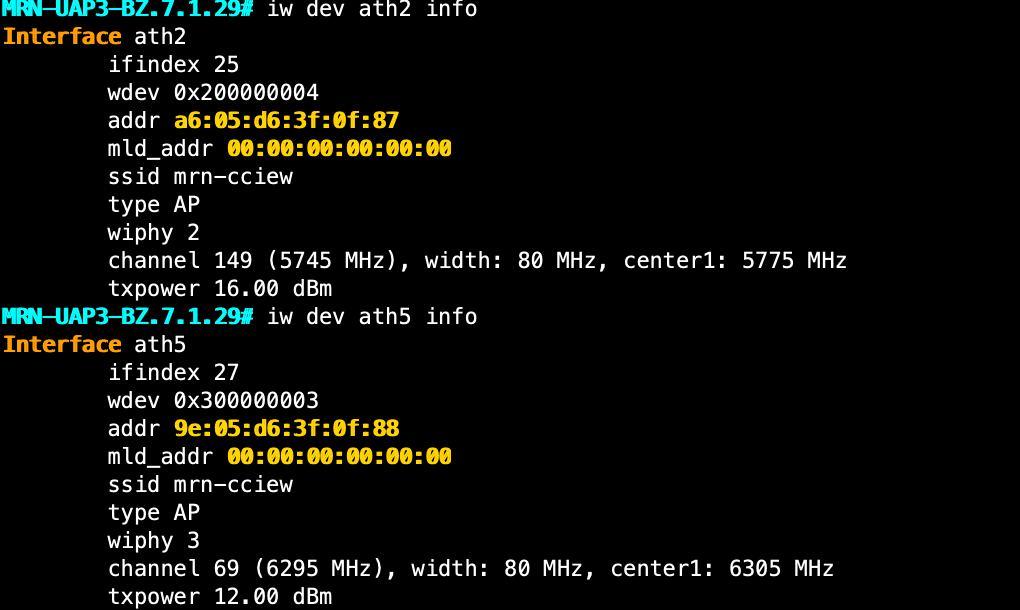
In addition to ‘monitor mode’ captures on 5/6GHz radio interfaces, it provides traffic captured on the managed mode type of interfaces. In my AP I had 2nd SSID (mrn-cciew) and it looks like those files give ethernet-like traffic without any wi-fi-related info.
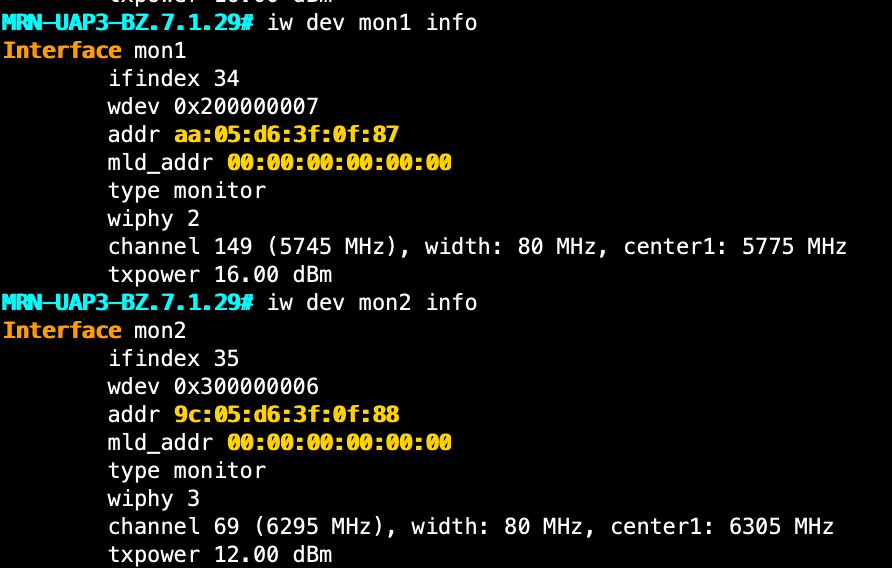
While capture is running, if you check the ‘mon1‘ and ‘mon2‘ interface info, you can see them as ‘monitor mode’ interfaces.
Here is the filtered traffic for my client’s MAC address and excluding control frames (wlan.addr == a2:40:d9:f7:64:15 && not wlan.fc.type == 1). As you can see it appears the order of certain frames is not quite right (opposed to Authentication -> Association -> 801.X/EAP -> 4-Way Handshake).
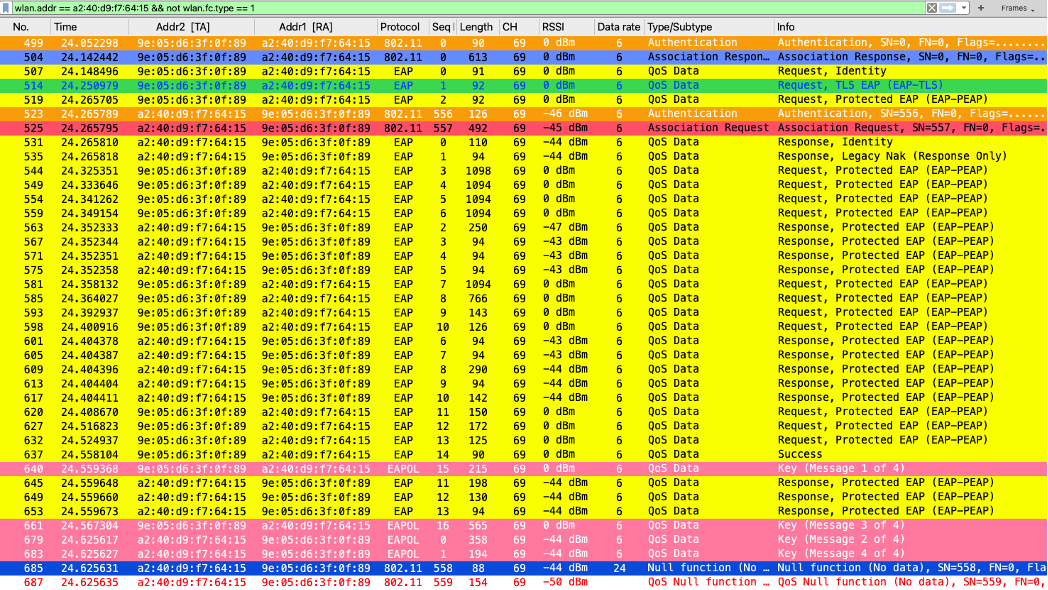
It appears certain frames have been sliced (eg association response) or have been captured with errors (association request shows as malformed)
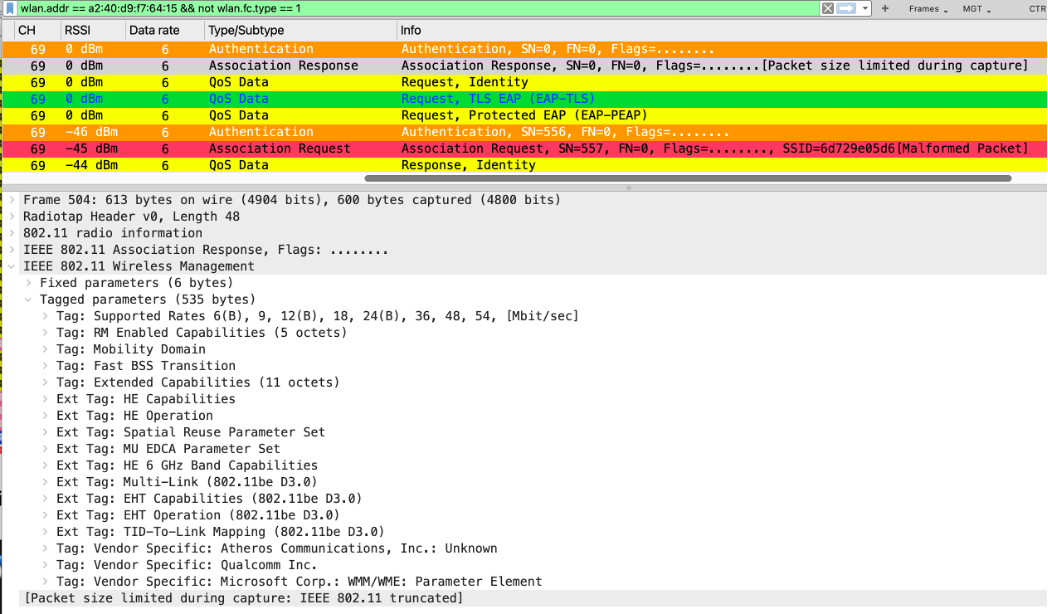
I am sure UniFi will improve this feature over coming releases. In this YouTube video from hz777, you can see a bit more details on performance impact while taking PCAP on UniFi.
I took a separate multichannel (same CH149 and CH69) capture using WLANpi and AirTool 2. You can download that capture from here. You can see frames in the right order there.
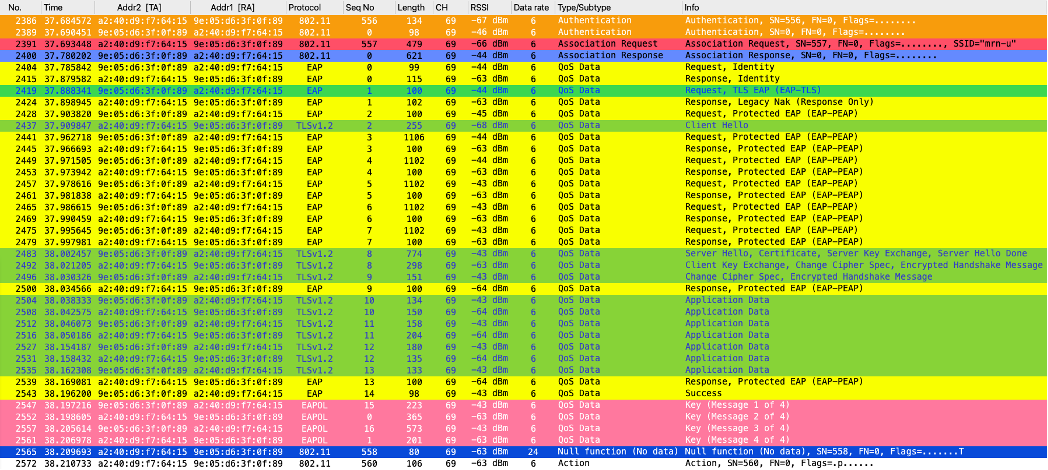
I will go through a few other multi-channel PCAP options in the next few blog posts. Stay tuned.
 mrn-cciew
Awesome post Nayarasi. Thanks for sharing the sniffer captures.
You are welcome Jitendra