
In this post let’s have a look at PCAP capability of Meraki Access Points. Meraki had a manual packet capture feature for a long time and recently they have improved it and named as “Intelligent Capture” where you can enable automatically take PCAP in case of a client failure. There are 3 options available
- Intelligent capture
- Proactive PCAP
- Manual PCAP
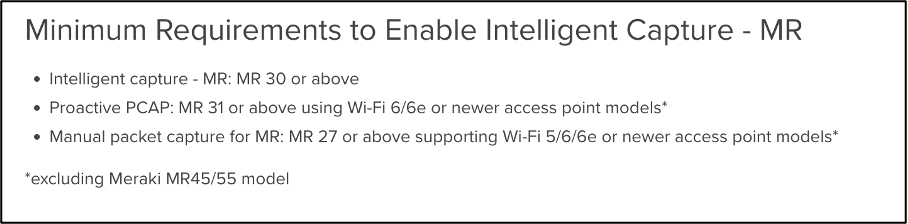
This document provide all the information and here is the minimum requirement for each of the above.
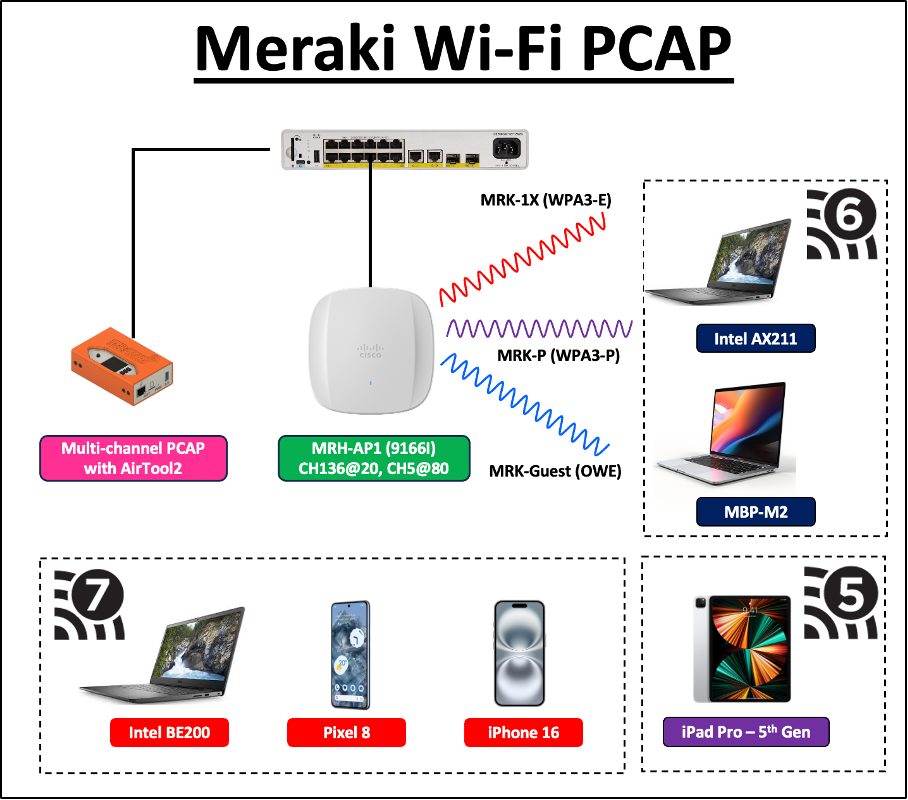
Here is the test setup. I have a Meraki CW9166I-MR and have configued three different SSIDs with three different security settings. Note that if you need 6GHz band on your SSIDs, you cannot configured transition modes secuirty (WPA2+ WPA3). I have used different client types (Wi-Fi 5,6 and 7) to connect to these SSIDs and captured Wi-Fi PCAP on the Meraki AP itself , while simultaneously conduct OTA (Over the Air) capture using Airtool2 and WLANpi with multiple USB adapters.
- [MRK-1X] WPA3-Enterprise and
- [MRK-P] WPA3-Personal and
- [MRK-Guest] Enhanced Open/OWE – Opportunistic Wireless Encryption.
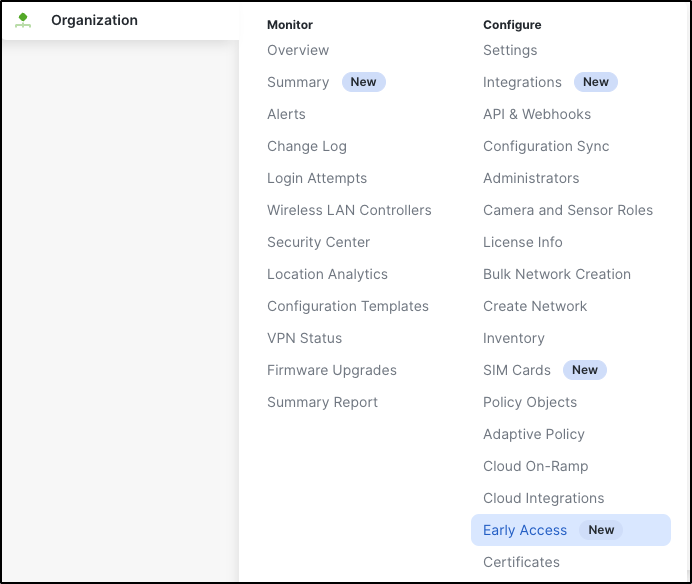
You can enable intelligent capture from the Organization > Configure > Early Access page and then opt-in for that feature.
You can have this feature across many Meraki products. If you want it on Meraki APs, you have to choose ‘Intelligent Capture – MR‘ as shown below.

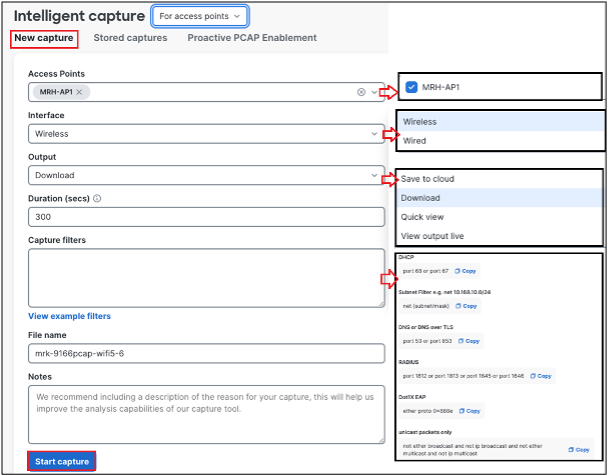
Once you’ve done that, you can go to Network-wide > Wireless > Intelligent Capture to take a Wi-Fi PCAP. If you a troubleshooting a particular problem, you need to take a manual PCAP. You can go to ‘New capture‘ option and select APs (you can select multiple APs if you troubleshoot roaming issue). , interface can be wired or wireles. Duration can be max 1200s or 20min and you have the ability to stop capture anytime you like. Output can be save locally or store in the cloud (or if you like real time view you can do that too). You have the flexibility of apply capture filters as well.
While that capture is running I have take OTA- Over the Air capture using Airtool2 and WLANpi with multiple USB adapters. As my AP operate CH136@20MHz on 5GHz and CH5@80MHz on 6GHz set the channels as shown below.
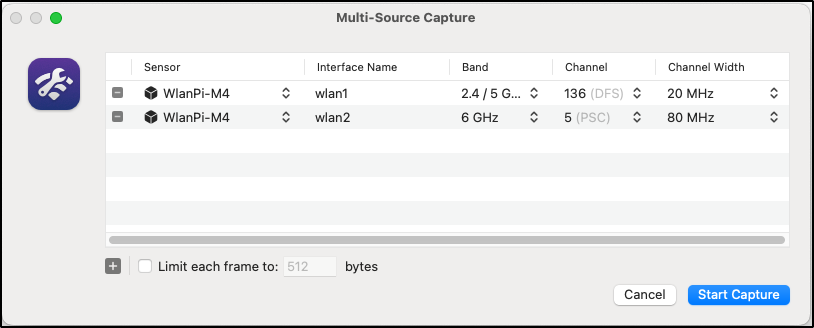
Here are the two PCAP taken during this test.
- Meraki-PCAP (mrk-9166pcap-wifi5-6.pcap)
- Airtool PCAP (airtool_9166-wifi5-6.pcapng)
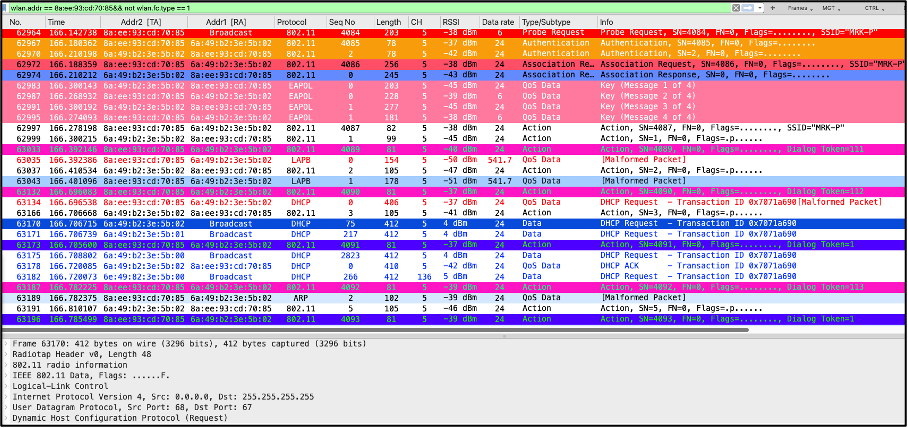
Now if you analyzed the above two PCAP, you can find many different client associations. Here is a client traffic ( wlan.addr == 8a:ee:93:cd:70:85 && not wlan.fc.type == 1) on Meraki capture when it connect to WPA3-Personal SSID. You can see the decrypted view of traffic as PCAP is taken from the AP itself.
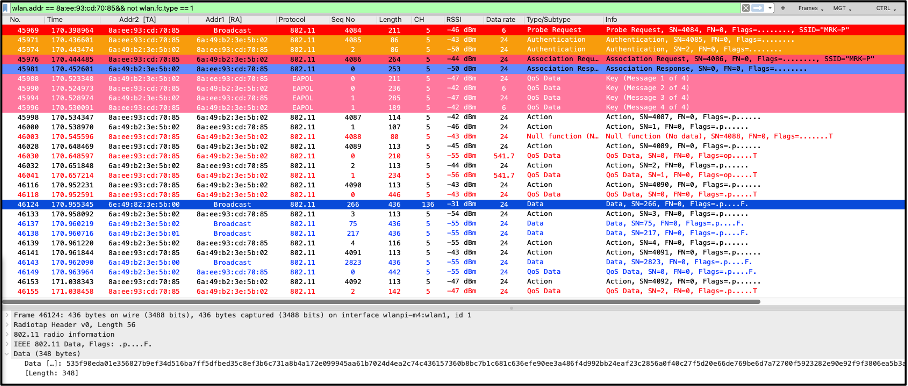
Here is the OTA capture view for the same. As you can see traffic is encrypted and you cannot see the inner details.
With WAP3 and OWE, management frame protection is mandatory. Most of the management frames (deauthentication, disassociation and robust action frames) are proected. Therefore, if you want a complete undertanding of the packet flow, having decrypted view of those management frames is vital. If you see the Mearki capture, you can see action frame immdeately after 4-way handshake is client is asking for ‘Neighbor Report Request’.
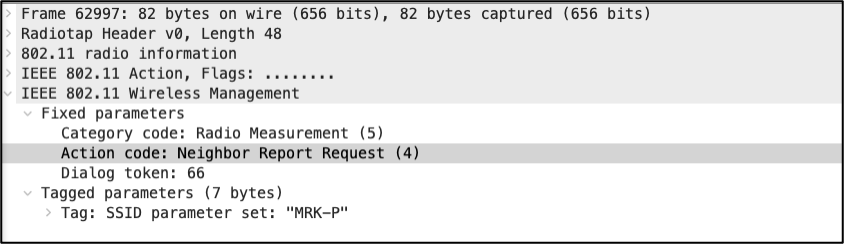
Whereas with OTA capture you will not able to see that details

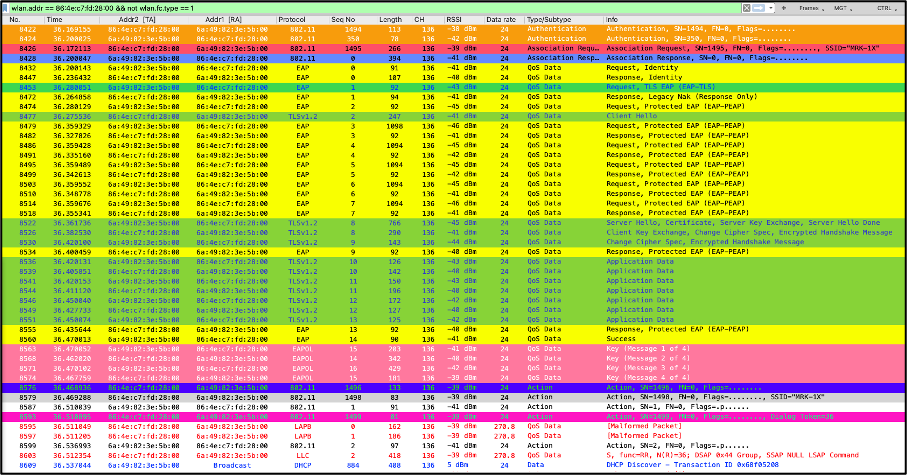
Here is another client (iPad which is only 5GHz connect on CH136 to WPA3-Enterprise SSID). You can use (wlan.addr == 86:4e:c7:fd:28:00 && not wlan.fc.type == 1) wireshark display filter for that. Still you can see the decrypted traffic which is very useful for analysis and troubleshooting.
Proactive PCAP
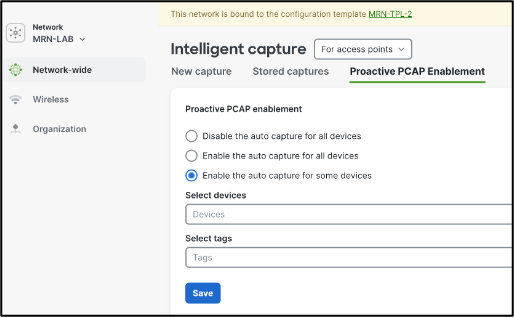
You can enable this feature in order Meraki (in Wi-Fi 6 and 6E APs) to automatically generate PCAP for any client connection or roaming failures.It is limited to client assocation and authentication failures. You required MR-Advanced licence to have this feature. These PCAPs are retain for 7 days and you can download them to your local machine as need basis. You can enable it for all devices or you can use tags to filter your clients out.
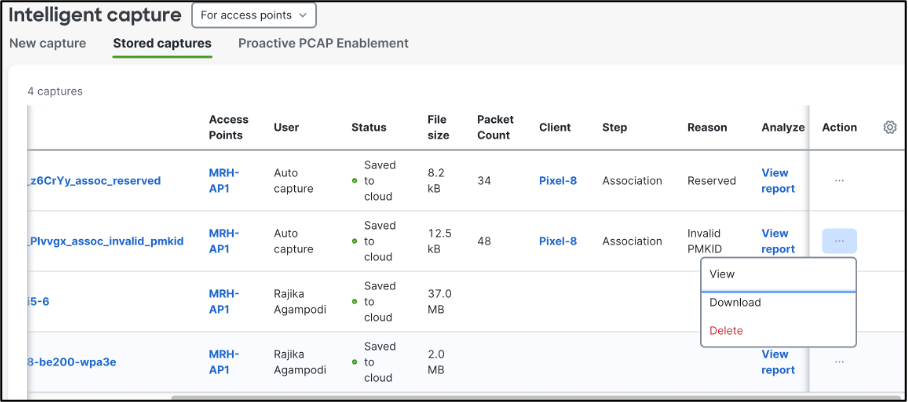
Once you enable Proactive PCAP, you should be able to see captures when client is having trouble of connecting (or roaming) to an AP. You can download those captures (by click on 3 dots in action) and further analyis. Here is the downloaded PCAP if you like to check.
In summary, if you have Mearki APs you have a really powerful tool to take PCAP for troublshooting.
 mrn-cciew
Thank you for sharing this. It’s good to see Meraki improved packet capturing. I used this feature a while ago and results were not so good back than. Captures were unidirectional and not all frames were captured.
Hi Ivo, Thanks for posting. Cisco meraki has improved a lot on packet capture. and among them, one of first thing that we have addressed is bi-directional packet capture. now you won’t see any such case using the latest AP firmware!
Hey Minse, Thank you very much checking these comments and respond to it.
Regards
Rasika
No worries Rasika, as you have seen from the meraki PCAP itself, Cisco made extremely meticulous approach to take all of packets over the air. it’s packet capture doesn’t miss or omit critical control frame or beacon (which is critical to analysis BSSID availability). Thank you!
-Minse