
Tags
If you’re a wireless engineer and haven’t tried the lswifi CLI scanner on Windows, you’re missing out on a powerful tool in your troubleshooting toolkit. This tool is developed by Josh Schmelzle an active contributor to the Wi-Fi community in many different ways. If you have paid Wi-Fi scanners like Wi-Fi Explorer or WinFi, you’ll get better visualizations and many additional features. However, if you’re looking for a free tool on Windows, there’s nothing better than ‘lswifi’.
Once installed (watch the video above for a step-by-step guide), you can use the Windows CLI prompt to gather information about your Wi-Fi environment using the lswifi command. This will display all amendments supported by each SSID along with specific security configuration settings, including a detailed decode of the RSN element—such as AKM, unicast, and broadcast ciphers.
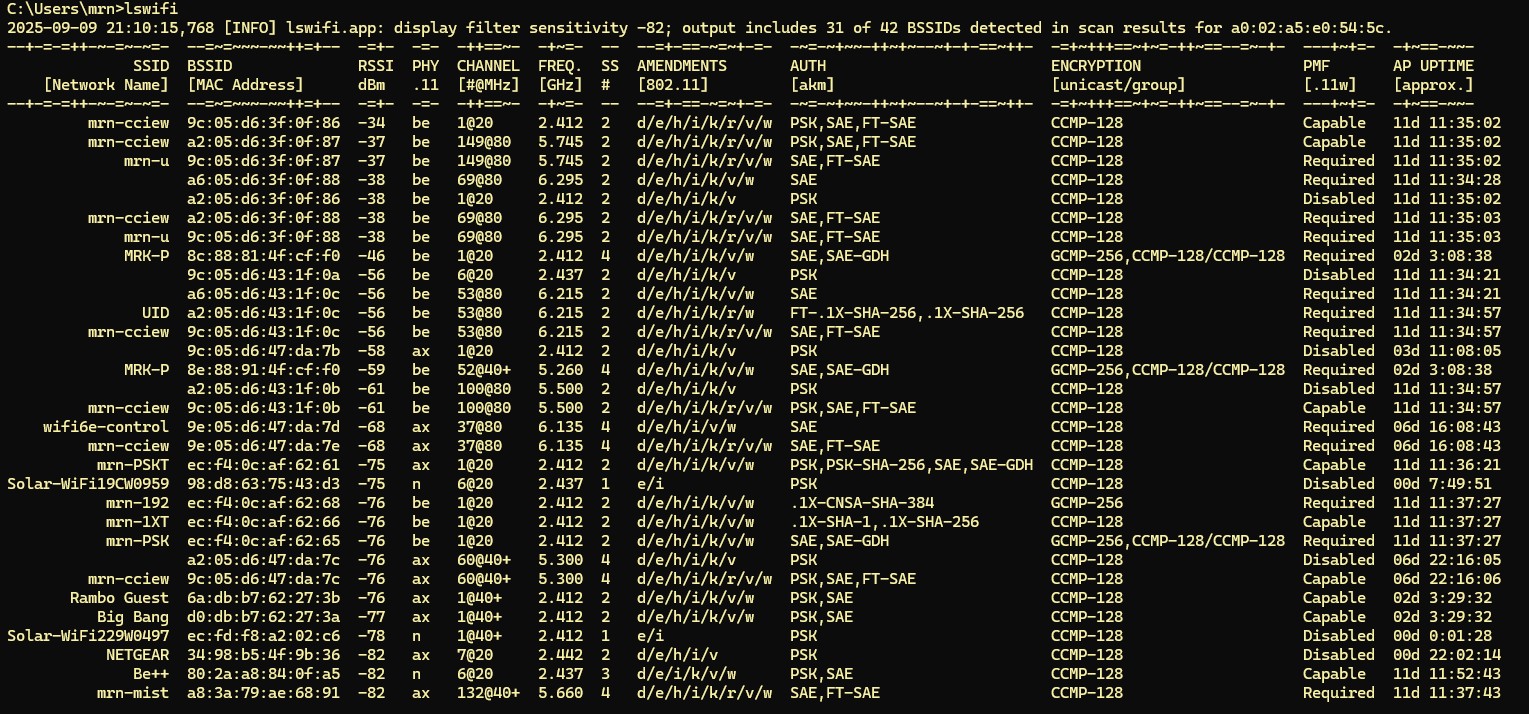
There are many options available to filter the information you need. You can filter 2.4GHz, 5GHz, and 6GHz networks by simply adding the ‘-g‘, ‘-a‘, or ‘-six‘ keyword at the end


By default, it shows any SSIDs stronger than -82dBm signal strength. If you want to modify that value you can use ‘-t‘ keyword. Here is how you can filter SSIDs stronger than -75dBm.

If you like to see the details of particular SSID, you can use ‘-inc or –include‘ keyword. Here is how you can filter ‘mrn-cciew’ SSID information.

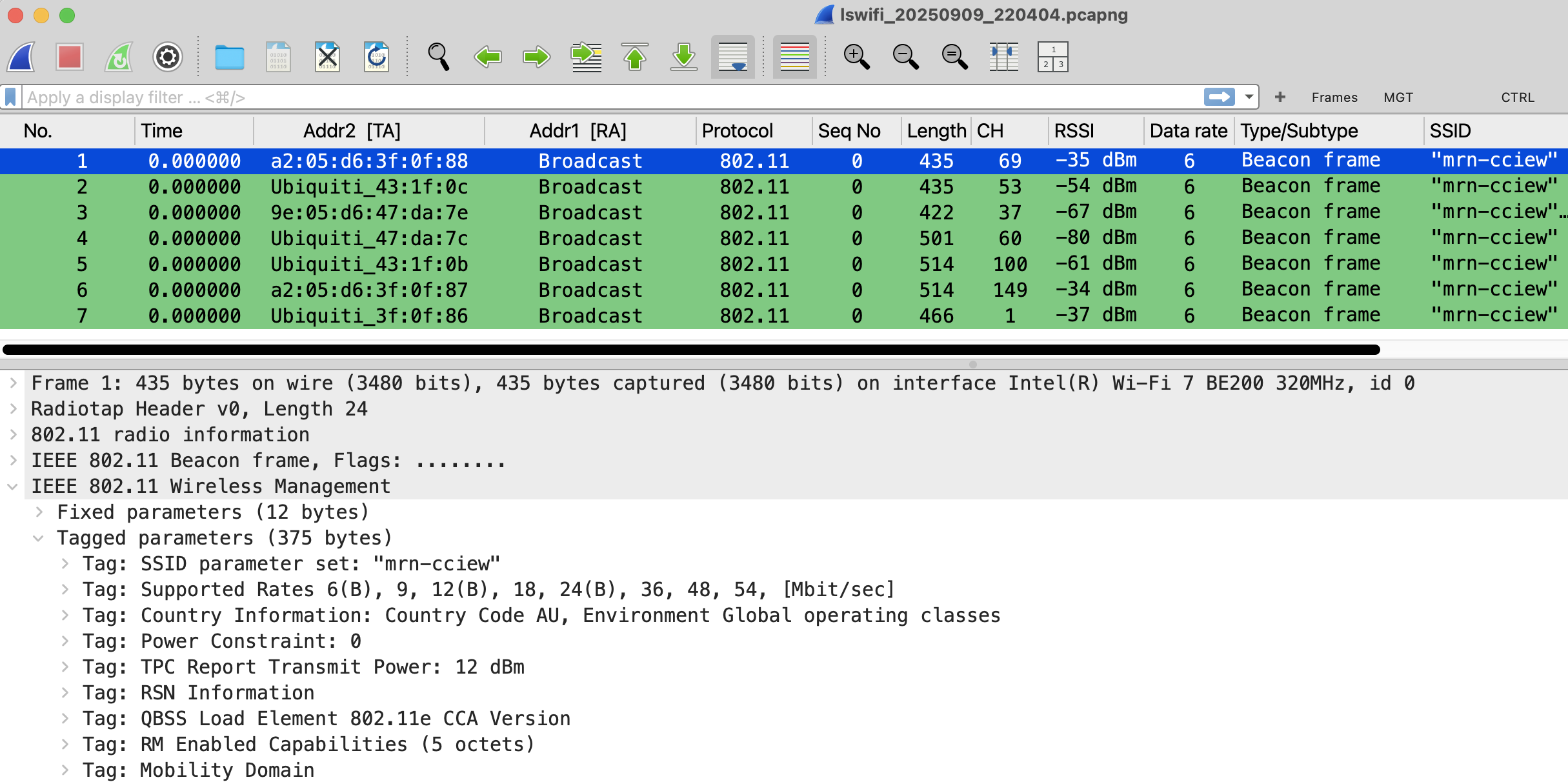
All of these information is gathered from ‘Becaon’ frames, you are able export into pcap file by simply using ‘-export’.
C:\Users\mrn>lswifi -include mrn-cciew -export
2025-09-09 22:04:04,572 [INFO] lswifi.app: Exported 7 networks to C:\Users\mrn\AppData\Local\lswifi\lswifi_20250909_220404.pcapng
Here is the exported PCAP that shows those beacon frames in your protocol analyzer (Wireshark in this case)
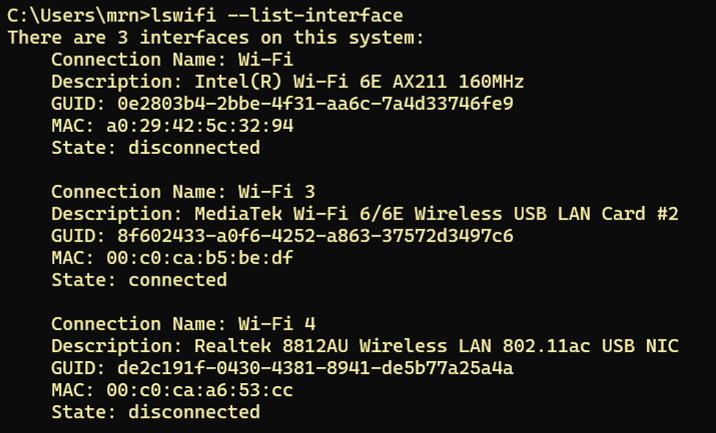
You can use the --list-interfaces option to display details of all your Wi-Fi interfaces
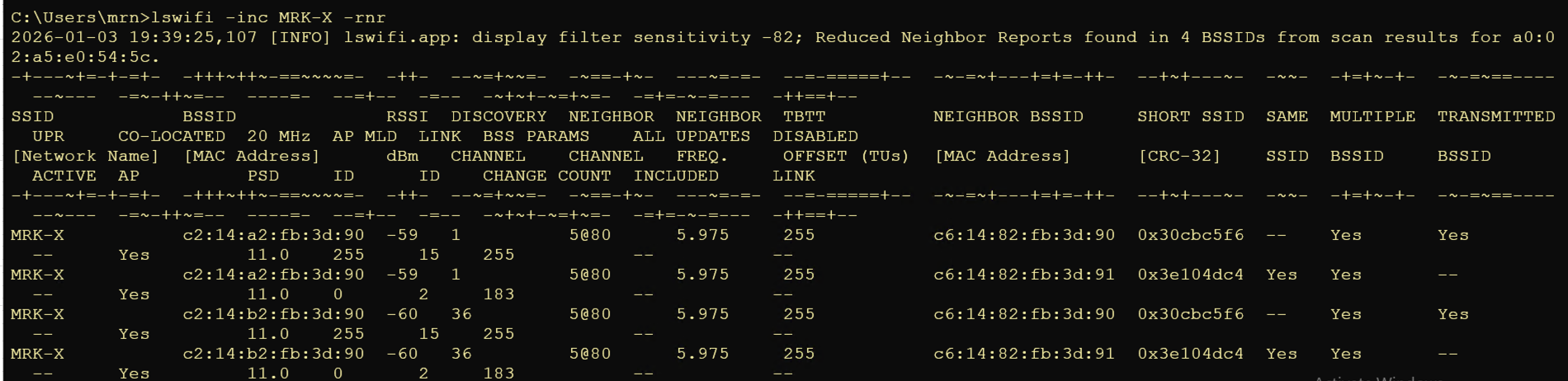
You can use the -rnr option to learn more about RNR element information. In the example below, you can see that the 2.4 GHz and 5 GHz radios advertise their 6 GHz SSID details on channel 5 with 80 MHz bandwidth. Based on the AP MLD ID and link ID, you can identify Wi-Fi 7-specific details for those links (0 = 2.4 GHz, 1 = 5 GHz, and 2 = 6 GHz in a Meraki AP).
If you’re already using this tool for any specific use cases, please share your experience in the comments section so others can learn from you.
 mrn-cciew