
You’re setting up Cisco 9800 Wireless LAN Controllers (WLCs), and like many of us, you’re probably using an IP address to access the GUI. The catch? It triggers annoying security warnings every time. Not exactly the smoothest experience, right? Well, the solution is here: Install a certificate on your 9800, specifically for web administration purposes. Let’s look at how you do it in this post.
I’ve utilized the Cisco 9800-CL (Virtual) on IOS-XE 17.12.1 alongside Microsoft CA. I chose the Elliptic Curve (EC) certificate over RSA because it offers robust security with a shorter key length. However, if EC isn’t compatible with your 9800’s code versions or your certificate authority, you can always opt for RSA certificates as a reliable alternative.
C9800-3(config)#crypto key generate ec keysize 256 label WEBADMIN_KEY
The name for the keys will be: WEBADMIN_KEY

*** If you need to use RSA use below CLI ***
C9800-3(config)#crypto key generate rsa modulus 4096 general-keys label WEBADMIN_KEY
Next, it’s time to define a PKI trustpoint. If you’ve used an RSA keypair, replace “eckeypair X” with “rsakeypair X” in the following steps. In the DNS configuration, I’ve assigned the alias “wlc3” to the WLC named “c9800-3”. As you can observe, the previously defined EC Keypair is being utilized in below configuration.
crypto pki trustpoint WEB-ADMIN24
 enrollment terminal pem
 subject-name C=AU, ST=VIC, L=Melbourne, O=MRN, OU=ICT, CN=c9800-3.mrn.local
 subject-alt-name wlc3.mrn.local,c9800-3.mrn.local
 revocation-check none
 eckeypair WEBADMIN_KEY
 hash sha256
Next, you’ll need to enroll and authenticate the PKI trust point with the CA server. This process will provide you with a CSR (Certificate Signing Request) after enrollment. You can then use this CSR to generate a certificate from the CA
C9800-3(config)#crypto pki enroll WEB-ADMIN24
% Start certificate enrollment ..

% The subject name in the certificate will include: C=AU, ST=VIC, L=Melbourne, O=MRN, OU=ICT, CN=c9800-3.mrn.local
% The subject name in the certificate will include: C9800-3.mrn.local
% Include the router serial number in the subject name? [yes/no]: no
% Include an IP address in the subject name? [no]: no
Display Certificate Request to terminal? [yes/no]: yes
Certificate Request follows:

-----BEGIN CERTIFICATE REQUEST-----
MIIBkTCCATgCAQAwgYkxGjAYBgNVBAMTEWM5ODAwLTMubXJuLmxvY2FsMQwwCgYD
VQQLEwNJQ1QxDDAKBgNVBAoTA01STjESMBAGA1UEBxMJTWVsYm91cm5lMQwwCgYD
VQQIEwNWSUMxCzAJBgNVBAYTAkFVMSAwHgYJKoZIhvcNAQkCFhFDOTgwMC0zLm1y
bi5sb2NhbDBZMBMGByqGSM49AgEGCCqGSM49AwEHA0IABAPRtpBscrLNAIJHvfXT
JQB1R5y0JjfvReCkiBpsAcFAoqn28dLDSgT9GxpbmXaIktL2eDDYxDhuDH0OcjyN
sKmgTDBKBgkqhkiG9w0BCQ4xPTA7MCwGA1UdEQQlMCOCDndsYzMubXJuLmxvY2Fs
ghFjOTgwMC0zLm1ybi5sb2NhbDALBgNVHQ8EBAMCB4AwCgYIKoZIzj0EAwIDRwAw
RAIgBl5gJstTvweReoTnmojabAupt4psceQ6gtvJpOPgJ64CIFkM7+BEhaUgXPti
vTaT0zCZFOa81J7hDfH2s+MbRzog
-----END CERTIFICATE REQUEST-----

---End - This line not part of the certificate request---

Redisplay enrollment request? [yes/no]: no
Let’s see how you authenticate your PKI trustpoint with the CA. Your next step involves downloading a certificate issued by the CA, often called an intermediate certificate. In my case, I have downloaded this CA certificate and the device certificate issued for the CSR generated above.
C9800-3(config)#crypto pki authenticate WEB-ADMIN24

Enter the base 64 encoded CA certificate.
End with a blank line or the word "quit" on a line by itself

-----BEGIN CERTIFICATE-----
MIIGHTCCBAWgAwIBAgITIQAAAAabzZAZxVp4sQAAAAAABjANBgkqhkiG9w0BAQsF
.
.
.

4gWNkKbiAuha8eCmi1ZvoTwQ/z8rFKW52A9l9q6Tkdmm
-----END CERTIFICATE-----
quit
Trustpoint 'WEB-ADMIN24' is a subordinate CA and holds a non self signed cert
Certificate has the following attributes:
       Fingerprint MD5: 59EFA5AD 222B23A1 B5967EAB B82277B2
      Fingerprint SHA1: 7D8B3D13 45EAAC85 04AD184C 115B7CD5 4FB8080B

% Do you accept this certificate? [yes/no]: yes
Trustpoint CA certificate accepted.
% Certificate successfully imported
Next, you have to import the certificate issued by CA for 9800 webadmin.

You have to download it in base 64 encoded format.
9800-3(config)#crypto pki import WEB-ADMIN24 certificate

Enter the base 64 encoded certificate.
End with a blank line or the word "quit" on a line by itself

-----BEGIN CERTIFICATE-----
MIIGwjCCBKqgAwIBAgITLAAAAIYMnjhyPYwlDgADAAAAhjANBgkqhkiG9w0BAQsF
.
.
w3MlI/er
-----END CERTIFICATE-----
quit
% Router Certificate successfully imported
Lastly, make sure to connect the “WEB-ADMIN24” trustpoint you set up for HTTP access. After that, it’s a smart move to give the HTTP service a quick restart. Just enter these CLI commands: “no ip http server” followed by “ip http server”.
ip http secure-trustpoint WEB-ADMIN24
!
no ip http server
ip http server
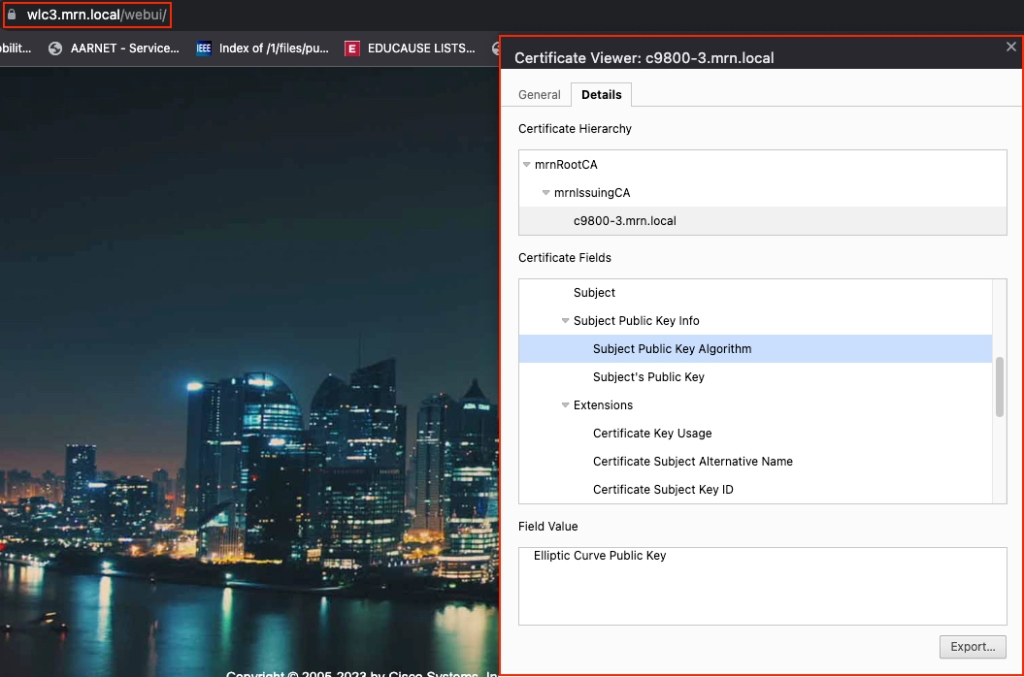
Now, you’re all set to test accessing the 9800 GUI without any security warnings. Voila, everything is running smoothly!. If you are using your own CA server make sure your device (laptop or PC) has CA’s root cert in the trusted root certs list.
If you are interested in seeing packet-level details, herewith attached PCAP that is taken on 9800 (filtered with ACL given below, 192.168.129.101 is laptop IP accessing 9800 GUI)
ip access-list extended MBP_ACL
 10 permit ip host 192.168.129.101 any
 20 permit ip any host 192.168.129.101
One thing you’ll notice is that starting from version 17.9.x of 9800, it is using TLS 1.3 for security. It’s the latest and most secure method available right now.

I hope you found the blog useful and gained some valuable insights. If you prefer a GUI approach, you can check out the “Generate & Download CSR Certificates on 9800 WLCs” document, which served as the main reference for this post.
 mrn-cciew
Another great post.
Not sure what you have in the pipeline for content on the site, but I’d love to see a couple of articles on mDNS including best-practices including specifics to residential/higher-ed.
Hi Jeff,
Thank you for the suggestion. I haven’t enable mDNS at my Uni on 9800 (mainly due to all those cpu concerns and haven’t that much demand to enable it)
I am thinking of few 9800 related Mesh Deployment posts and series of 6GHz technology for upcoming posts
HTH
Rasika
Great stuff as always, and a big Thank You for all you do.
You are welcome Steve and thank you for encouragement to keep blog going.
KIT
Rasika
In some testing I did a few months ago where I was using a public (letsencrypt) certificate on my 9800, I found out that this completely broke the “Out-of-Band AP Image Download” feature introduced in 17.11.1. This was because the APs then tried to use the public cert to download the image over https from the controller, but they didn’t have the required root/chain certs to trust the TLS.
I believe based on logs from when I upgraded to 17.12.1 that it still is a problem today. It was reported to Cisco as part of the 9800 EFT program back then.
Refer: https://www.cisco.com/c/en/us/td/docs/wireless/controller/9800/17-11/config-guide/b_wl_17_eleven_cg/m_eff_image_upgrade_ewlc.html
And specifically:
Note
…
AP image download over HTTPS may fail if the HTTPS server Trustpoint has a chain of CA certificates.
…
Best security practice is to NOT use your root CA to sign all end devices, which means that following this (or using a third party CA) means the Efficient Image Upgrade feature won’t work on the WLC if you install a trusted certificate. Yes, it is the best way to get rid of the constant warnings but breaks something else in the process.
Hi Ruben, Thank you for providing valuable input related to the post.
Rasika
9800-80 ver 17.09.04
If you are trying to import a multi-chained cert, go with the “Import PKCS12 Certificate” method: import the whole cert chain + private key in PKCS12 / PFX format.
See Option 1 here: http://www.cisco.com/c/en/us/support/docs/wireless/catalyst-9800-series-wireless-controllers/213917-generate-csr-for-third-party-certificate.html
Pingback: They’re giving me the 9800!! – Let's Ginger-Fi it!
WLC 5508 to WLC 9800
We are planning to replace the equipment.
Is there anything added regarding the DCA function?
I would really appreciate it if you could let me know.
You mean Dynamic Channel Assignment in RRM ? I would increase the interval to 8hrs, 12hr or 24hrs and anchored it to 00:00hrs, in that way channel changes occur few times a day and less busy times.
HTH
Rasika
Hi,
I would first like to thank you for this. Very helpful.
Unfortunately using the EC Key had the effect of NETCONF ssh Process not starting as expected. Probably a bug which TAC Engineers are currently checking.
Just wanted to write it for the next person that stumbles on this article.
WLC Version 17.9.5
Model: 9800-80
Thank you for the useful information.