
Tags
Over the years of teaching Wi-Fi and troubleshooting, I’ve noticed a common challenge: many students and even experienced professionals have limited hands-on experience with protocol analysis. Some are familiar with Wireshark, but mostly in wired environments—not wireless. To make learning and troubleshooting easier, I’m sharing my ‘RockstarWiFi-v1.7’ Wireshark profile—the same setup I use in my classes and for most of my real-world troubleshooting.
Simply download the profile, then ‘right-click‘ on the Profile section and select ‘Import → From Zip File‘, as shown in the image below.

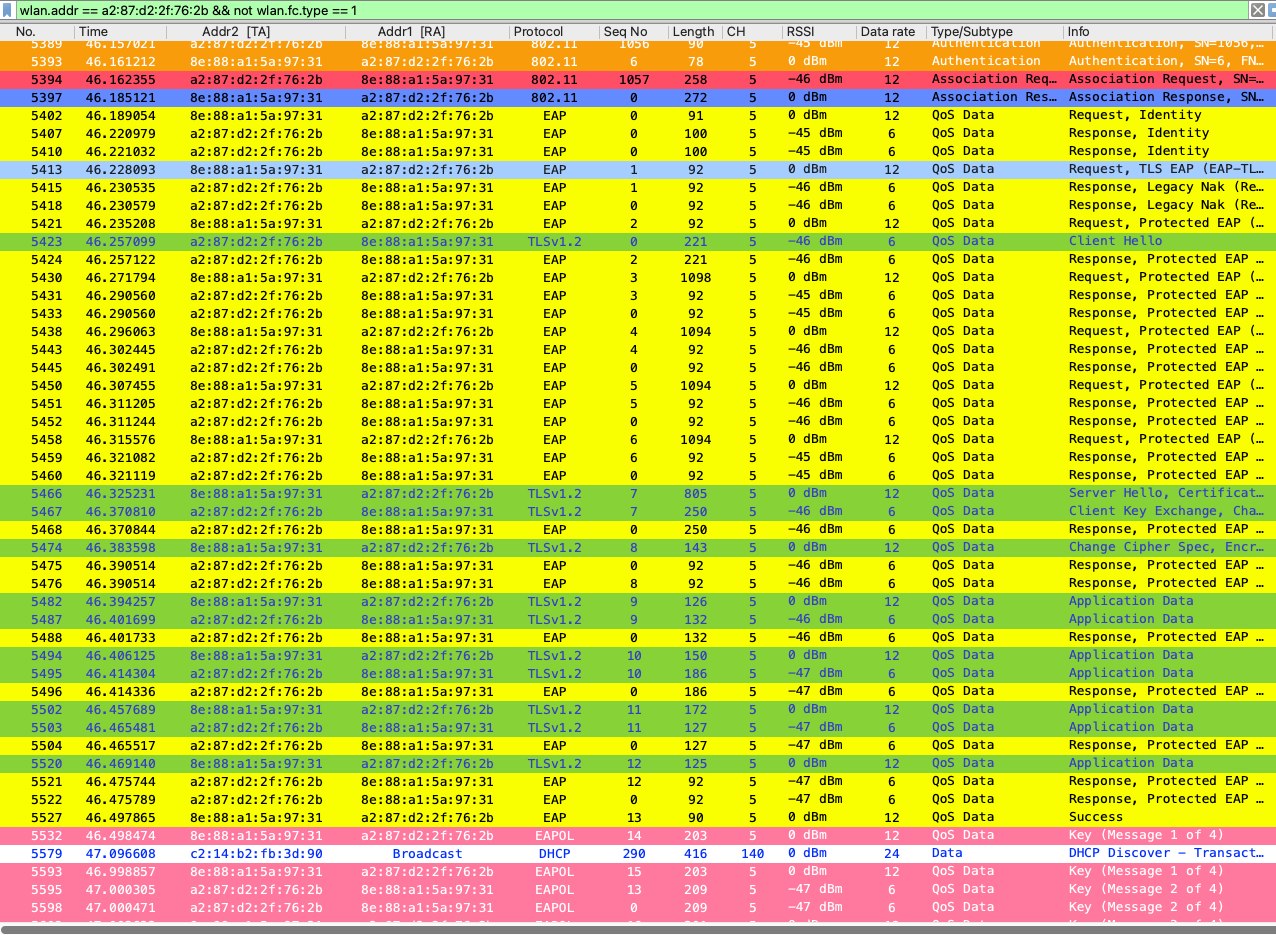
I’ve created a few display filter shortcuts for Management, Control, and Data frames, as well as some Wi-Fi 7 specific filters. The basic idea is simple: get the MAC address of the client you’re troubleshooting and enter it under Frames → Client MAC. Here is a video explaining how to use my Wireshark Profile in detail.
Even if you don’t know the client’s MAC address, you can find it in the (Re)Association Request frame—provided you captured the wireless PCAP while the client was connecting to the given SSID.

Once you add your client MAC address in “Frames > Client MAC” display filter, you should be able to see you client traffic in that PCAP.
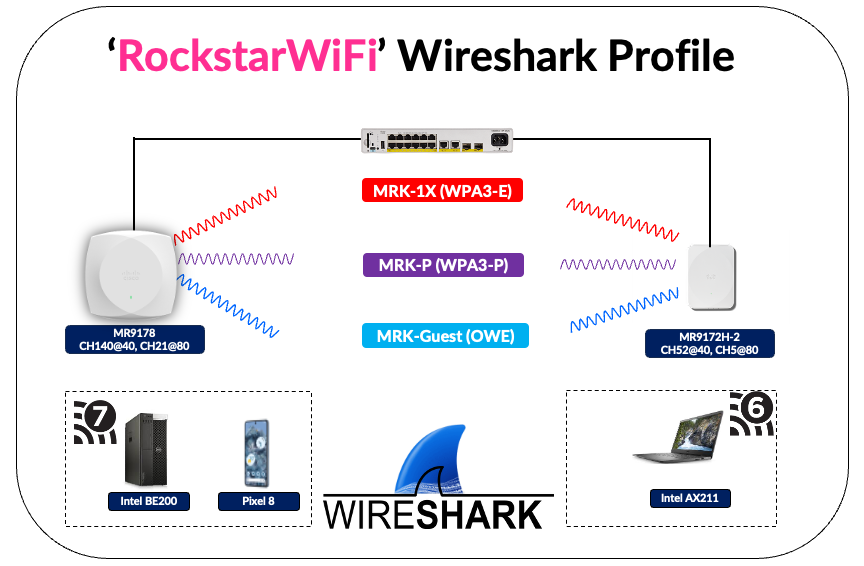
I used the topology shown below for this demonstration, and the PCAP was captured at the AP level using the Meraki Dashboard (refer to this post for instructions). This allows you to view unencrypted traffic, even when WPA3-Personal or WPA3-Enterprise security is configured on the SSIDs.
You might already have some other Wireshark profiles that you use for Wi-Fi troubleshooting and learning. If you are happy to share them with broader community, let me know. Here are a few public profiles shared by others in the community. I’ll keep this list updated whenever I receive a new profile or an updated version of these.
- WLAN Professionals Wireshark Profile – Provides tons of display filter shortcuts and nice color scheme.
- Rasika’s – RockstarWiFi-v1.7 – If you download any PCAP files from my blog posts, this profile includes the common password/MSK used in those captures. It also comes with a sniffer mode PCAP decoder and a color scheme originally shared on the Cisco forum.
- Metageek v2.0 Wireshark Profile
- Cellstream Wireshark Profiles – There are many profiles available for download. Most are designed for wired troubleshooting, and only a few are tailored for Wi-Fi.
 mrn-cciew
Pingback: CTS 383: Deep Dive - Wi-Fi Troubleshooting at the Frame Level